
Common Copier Mistakes That Cost Businesses Time and Money
Common Copier Mistakes That Cost Businesses Time and Money
In 2026, the paperless office remains more aspiration than reality. Most small and mid-sized businesses still print, copy, and scan hundreds of pages every week. Client contracts need signatures. Invoices get filed. HR documents require hard copy backups. Despite the push toward digital workflows, the copier continues to sit at the center of daily operations.
What many business owners don’t realize is that copier-related downtime, misconfigurations, and poor purchasing decisions quietly waste thousands of dollars per year. Costly copier errors in small businesses can lead to downtime that may cost up to $427 per minute. For a typical 10 to 50 person office, these losses can reach $5,000 or more annually in productivity alone—before you even count the money spent on unnecessary repairs, overpriced toner, and rushed equipment replacements. Paper, often compared to oil as an essential yet overlooked resource in printing, can also contribute significantly to hidden costs if not managed carefully.
Here’s what makes this particularly frustrating: most of these losses generally don’t come from the sticker price of the machine itself. They come from avoidable mistakes in how businesses choose, configure, and use their copiers. The wrong decision at any stage of the process—from purchasing to daily operation—compounds into real dollars lost.
This article provides a practical, business-focused rundown of the most common copier mistakes and how to avoid them. Whether you’re evaluating a new copier, trying to cut costs on your current fleet, or simply want to stop losing time to paper jams and service calls, you’ll find actionable guidance here.

1. Buying a Copier Based on Price Tag Alone
Suppose a small accounting firm chose a $500 copier in 2023 because it was the cheapest option at the office supply store. Within 18 months, they had spent $2,700 on toner replacements and three separate service calls. The machine they thought would save money ended up costing nearly six times its original price—and they still needed to replace it.
This scenario plays out in offices everywhere. Ultra-cheap devices often carry the highest cost per page because manufacturers design them around expensive, low-yield cartridges. The initial savings evaporate quickly when you’re paying $0.08 or more per page instead of $0.02 on a business-class model. Add in frequent drum and fuser replacements—components that wear out faster on bargain machines—and the math gets ugly fast.
This is where Total Cost of Ownership (TCO) becomes essential. TCO accounts for everything you’ll spend over the life of the copier: acquisition price, toner and consumables, maintenance contracts, energy consumption, and repairs. Buying in bulk can lead to significant savings on paper and ink cartridges, further reducing your ongoing costs. A machine that costs $1,800 more upfront might actually save you $3,000 over three years.
Consider this example: a $1,200 low-cost copier with toner that runs $0.06 per black-and-white page, printing 3,000 pages monthly. Over 36 months, you’ll spend roughly $6,480 on toner alone, plus the machine—$7,680 total minimum. Compare that to a $3,000 business-class model with $0.02 per page toner costs. Your 36-month toner spend drops to $2,160, bringing your total to $5,160. The “expensive” copier saves you $2,500.
To avoid costly mistakes when purchasing, evaluate these TCO factors:
Cost per page for both black-and-white and color printing (ask for CPC or CPI figures in writing)
Monthly duty cycle rating versus your actual expected volume
Consumable yields and replacement frequency for toner, drums, and fusers
Energy costs including sleep-mode efficiency and power consumption
When selecting a copier or plan, it’s important to present the value and benefits of each option clearly to ensure you make an informed decision. During negotiations, both parties should collaborate to reach a mutually beneficial agreement that aligns with your business needs.
The perfect copier for your office isn’t the one with the lowest price tag—it’s the one that delivers the lowest total cost over its useful life. Focus on value, not just the deal.
2. Misjudging Your Actual Print and Copy Volumes
Many businesses guess their page volume when shopping for a copier. They imagine they print “a moderate amount” or estimate based on gut feeling rather than data. This leads to machines that are either constantly overworked or drastically underused—both of which waste money.
Under-specifying creates serious problems. When you push a copier rated for 5,000 pages per month to handle 15,000, you accelerate wear on every mechanical component. Drums designed to last 100,000 pages start failing at 60,000. Fusers overheat. Rollers wear unevenly, causing paper jams. The result is frequent technician visits at $100 to $200 per call, plus the productivity loss of having your copier down during business hours.
Overspecifying wastes money differently. Paying lease or purchase costs for a 60 ppm department-class MFP when your 5-person office only prints 1,000 pages monthly means you’re funding capacity you’ll never use. Those dollars could go toward better supplies, service coverage, or other business needs.
Here’s how to get accurate numbers before buying:
Pull usage reports from your existing copier’s admin panel or request meter reads from your current vendor
Check invoices from your service provider, which typically include page counts at each visit
Log print volumes manually for 30 days if no other data exists—assign someone to record meter readings weekly
Include scanning and copying in your counts, not just printing
Account for seasonal variations if your business has busy periods with higher document output
Match your monthly volume to the appropriate device class:
Under 2,000 pages/month: Desktop or personal laser printers may suffice
2,000 to 10,000 pages/month: Light-duty MFPs designed for small workgroups
10,000+ pages/month: Department-class copiers with higher duty cycles and faster output
Getting this right protects you from both premature equipment failure and unnecessary expense. Base your decision on real data, not assumptions.

3. Overlooking Maintenance, Service Response, and Downtime Costs
Copier downtime is the hidden productivity killer that rarely shows up in budget spreadsheets. When your main copier goes down, employees queue at a backup printer, emails get delayed, and client work gets rescheduled. A company processing invoices, purchase orders, or patient records can’t afford to wait two days for a technician.
The financial impact adds up quickly. Imagine a 10-person office where employees earn an average of $50 per hour. If the copier is down for just 4 hours and each person loses 30 minutes of productivity, that’s $250 in labor costs. If the copier fails quarterly and takes 2 days to fix each time, you’re looking at $5,000 or more in annual productivity losses—before you pay a dollar for the repair itself.
Service models vary significantly. Manufacturer warranties typically cover parts but not consumables or user-caused issues. Third-party maintenance contracts offer more flexibility but vary in quality. Cost-per-copy agreements bundle toner, service, and repairs into a single per-page fee, which can simplify budgeting but requires careful analysis of the included terms.
Preventative maintenance visits—where technicians clean components, replace wear parts before they fail, and update firmware—deliver far better ROI than reactive service calls. A scheduled visit that costs $150 and prevents a breakdown is worth far more than an emergency visit at $200 plus lost productivity.
Before you sign any service agreement, ask these questions:
What is the guaranteed response time for on-site service (e.g., 4 hours, 8 hours, next business day)?
Are all parts covered, or are certain components excluded?
Is toner included in the agreement, or billed separately?
Do you provide loaner equipment if repairs extend beyond 24 hours?
Does the agreement include remote diagnostics to resolve minor issues without a technician visit?
What qualifies as “user error” and is excluded from coverage?
Good service isn’t just about fixing what breaks. It’s about minimizing the risk that things break in the first place—and ensuring rapid response when they do.
4. Ignoring Connectivity, Workflow, and Security Features
Modern copiers are networked document hubs, not just machines that make copies. Failing to use their digital features wastes both time and money, while ignoring their security risks exposes your company to data breaches and compliance failures.
Productivity and Workflow Features
Most business-class copiers manufactured after 2020 include features that can dramatically improve document workflows. Yet many offices never configure them, leaving employees walking to the copier to scan documents that then get emailed as images, manually saved, and re-filed.
Productivity features worth implementing:
Scan-to-email and scan-to-cloud: Send scanned documents directly to SharePoint, Google Drive, OneDrive, or email without touching a computer
Mobile printing: Enable AirPrint, Mopria, or manufacturer apps so staff can print from phones and tablets
Pull-printing: Users send jobs to a queue and release them at any copier with their PIN, reducing waste from unclaimed prints
Department codes: Track usage by team or project for accurate cost allocation
Security Risks and Protections
Copiers store data. Every document scanned, copied, or printed may pass through the machine’s hard drive. Without proper security, confidential HR files, financial documents, or customer records could be accessible to anyone who accesses the copier’s admin panel—or who buys the machine at end-of-life.
Security features to require in 2024-2026 models:
User authentication: PIN codes, card swipes, or biometric access to control who can use the device
Secure print release: Jobs held until the user authenticates at the copier, preventing documents from sitting in output trays
Hard drive encryption: Data stored on the copier is encrypted and unreadable without proper keys
Automatic data overwrite: The copier erases file data after each job completes
A healthcare practice that tightened copier security to meet HIPAA requirements discovered that their previous copier had been accessible via default admin passwords for three years. Patient photos, insurance documents, and letters containing protected health information had been stored unencrypted. Implementing proper access controls and encryption eliminated this exposure completely.
Don’t let your copier become a security gap. These features exist—use them.
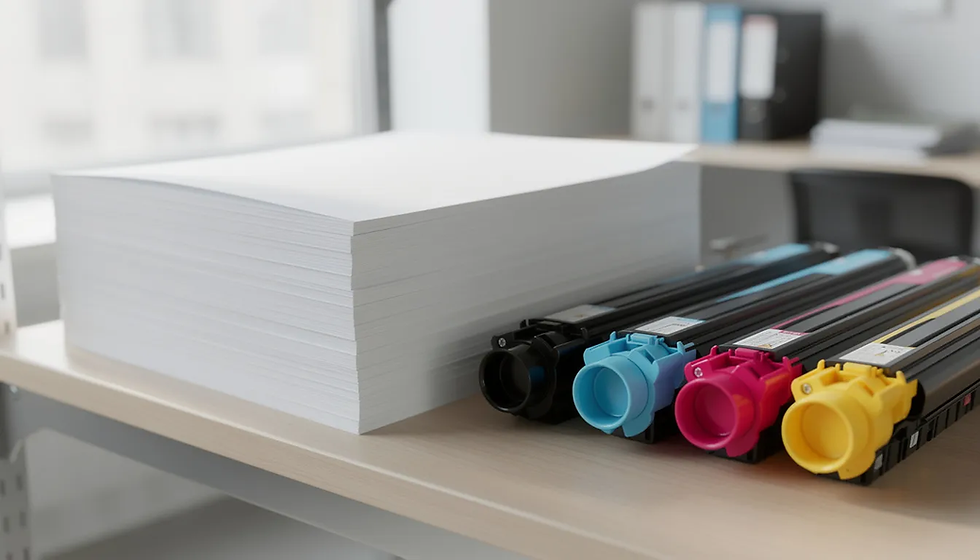
5. Wasting Money on Supplies: Toner, Paper, and Consumables
Supplies often account for half or more of your lifetime copier costs. Poor habits here quietly drain budgets month after month, and many businesses never realize how much they’re losing. In fact, approximately 30% of print jobs are never picked up and 65% are discarded the same day they are printed, leading to significant waste and unnecessary expenses.
Common mistakes include buying OEM toner at full retail price instead of through negotiated contracts, using premium photo-quality paper for internal documents where standard stock would do perfectly, and leaving duplex printing disabled so every document wastes twice the paper it needs. Failing to set 'black and white' and 'duplex' as default settings leads to increased printing costs, as color and single-sided prints consume more resources.
Compatible or third-party toner can make sense in certain environments. For internal documents, training materials, and other non-color-critical printing, quality third-party toner often performs within 90% of OEM quality at 50-60% of the cost. However, for color-critical marketing materials, customer-facing documents, or environments with strict warranty terms, OEM toner may be the safer choice. Check your service agreement—some contracts void coverage if non-OEM supplies cause damage.
Print quality and ink usage are also affected by the way images are produced on paper. The tiny individual points called 'dots' make up images, and higher resolution or denser dot patterns can use more ink, impacting both quality and cost. Additionally, using eco fonts can significantly reduce ink consumption and save money on printing costs, as these fonts are designed to use less ink by altering the way the dots are formed in each character.
When preparing documents, if high-quality images are not available, it is better to fill the document with valuable content rather than relying on low-quality visuals. This ensures the document remains informative and professional without unnecessary ink or paper waste.
Tracking your cost per page helps you spot problems early. Divide your monthly supplies spend by total pages printed. If you’re consistently paying over $0.03 per black-and-white page or $0.12 per color page, something is wrong—whether it’s inefficient toner, excessive color printing, or waste from unclaimed print jobs.
Choosing the right printer can also impact your long-term printing costs. Cheaper printers often have higher ink consumption rates, so investing in a more efficient model can save money over time.
Here are practical ways to cut supply costs:
Set duplex and grayscale as default print modes—users can override when needed, but most internal documents don’t require single-sided color
Implement print policies that route color jobs through approval or limit color access to specific departments
Review toner usage reports monthly to identify departments or users with abnormally high consumption
Buy toner through your service contract or volume agreements rather than retail, saving 20-40% on consumables
Use appropriate paper grades—save premium stock for client presentations, not internal memos
Every page you don’t print is money saved. Every efficient setting you enable compounds savings over thousands of prints per month.
6. Neglecting User Training and Access Controls
Even the best copier becomes a bottleneck if staff don’t know how to use it properly. Many businesses install sophisticated multifunction devices, hand employees a quick start guide, and wonder why service calls keep coming in for “broken” machines that are actually just misconfigured.
Common training-related errors include employees who don’t know how to clear paper jams safely—often making the problem worse by pulling paper in the wrong direction or leaving torn fragments inside the machine. Others have never been shown how to use scan workflows, so they take photos of documents with their phones instead. Some ignore error codes and lines on the display, assuming the machine is “just acting up” until it fails completely.
Lack of access controls compounds these problems. Without user codes or department accounts, there’s no way to track who prints what. Excessive personal printing goes unnoticed. Color usage spikes without accountability. Confidential documents get printed and left in trays. You lose both money and security.
A simple onboarding routine solves most of these issues:
15-30 minute training session when the copier is installed, covering basic operations, jam clearing, and scan features
Quick reference guides posted near the machine with step-by-step instructions for common tasks
Annual refreshers when settings change or new features are enabled
User authentication enabled so every print job is tied to a person or department
Essential topics to cover in user training:
How to safely clear paper jams without damaging the machine
How to use scan-to-email and scan-to-folder workflows
How to check toner levels and request replacements before running out
When to call for service versus when to try basic troubleshooting
Enabling PIN codes or user authentication serves multiple purposes: it tracks usage by department for cost allocation, discourages non-business printing, and ensures confidential documents require authentication to release. The data generated feeds directly into reports that help you understand where your printing costs actually go.
7. Failing to Plan for Growth, Changes, and End-of-Life
Business needs rarely stay static. A company that prints 5,000 pages monthly in 2024 might print 15,000 by 2027. Staff grows. Document workflows change. Yet many businesses lock into copiers that can’t scale or adapt, creating problems when needs evolve.
Capacity and feature planning requires thinking ahead. When selecting a new copier, allow headroom in the monthly duty cycle—if you print 8,000 pages now, choose a machine rated for at least 15,000 to accommodate growth. Select models that can add paper trays, finishing options, or additional memory later. Ensure firmware can be updated to address emerging security standards without requiring hardware replacement.
Lease and ownership mistakes frequently trap businesses. Signing a 60 to 84 month lease without mid-term refresh options means you’re stuck with outdated technology for years. Conversely, keeping aging devices beyond their economic life just to “avoid change” leads to mounting repair costs and reduced productivity as parts become harder to source and performance degrades.
Consider an example: a consulting firm expects to grow from 10 to 25 staff within three years. Their current copier handles current volume fine, but it’s already 4 years old with no expansion capacity. Rather than waiting for it to fail during a busy season, they plan a replacement in year 5, selecting a device with additional trays and higher duty cycle. When growth happens faster than expected, they’re prepared rather than scrambling.
Forward-planning questions to consider:
What is our expected page volume in 2-3 years based on growth projections?
Can this copier add trays, finishers, or memory without replacement?
Does our lease include options to upgrade or refresh equipment mid-term?
When does the manufacturer end support or stop producing consumables for this model?
Do we have a lifecycle plan that budgets for replacement before the machine reaches end-of-life?
Set a simple lifecycle plan: review copier performance and costs at year 3, budget for replacement by year 5-6, and never let a device run until catastrophic failure forces a rushed, expensive decision. Planning ahead turns copier replacement from a crisis into a routine business process.
8. Overlooking Design and Printing Errors That Waste Resources
Many businesses focus on the technical specs of their copier but overlook the costly mistakes that happen before a single page is printed. Design and printing errors can quietly drain your budget, leading to wasted paper, toner, and time spent fixing preventable problems. For example, sending a file with low image resolution or missing bleeds to the copier can result in blurry photos, uneven trim, or documents that look unprofessional—forcing you to reprint and waste both money and resources.
Blurry black text, incorrect fonts, and poor color choices are common mistakes that can make hard copy documents difficult to read or visually unappealing. Using the wrong fonts, such as decorative or overly bold styles, can increase toner usage and reduce legibility. Instead, opt for eco fonts or standard business fonts that print cleanly and efficiently. Whenever possible, print in one color rather than full color for internal documents—this simple change can save money on every page.
To avoid investing in unnecessary reprints and repairs, always review and proofread your documents before printing. Check for errors in layout, image quality, and text clarity. Make sure your files are set up with proper bleeds and margins to prevent trimming issues. By being aware of these design and printing pitfalls, you can avoid costly mistakes, save money, and ensure your copier is producing the perfect hard copy every time.
9. Underestimating Hard Copy Production Challenges
Hard copy production is more complex than simply hitting “print.” Many businesses underestimate the challenges involved, leading to errors, delays, and increased costs that could have been avoided with better preparation. Failing to create a proper print-ready PDF, neglecting to supply a hard copy mock-up, or overlooking the importance of trim lines and safe areas can all result in costly mistakes that require reprints or even repairs to your copier or printer.
For example, submitting files with incorrect trim lines or missing safe zones can cause important content to be cut off or misaligned, wasting both paper and money. Poor proofreading can lead to embarrassing errors that require a complete reprint of the document. To avoid these issues, always consult with a reputable printing service company before submitting your files. They can help you identify potential problems and ensure your documents are set up correctly for your specific devices.
Additionally, consider the ongoing costs of maintenance, repairs, and eventual replacement of your office equipment. Ignoring these factors can lead to unexpected expenses and downtime. By being aware of the full production process and the potential risks involved, you can make informed decisions about your copier, printer, and other devices—helping your business avoid costly mistakes, save money, and get the most value from every dollar spent on hard copy production.
Conclusion: Turn Your Copier into a Competitive Advantage
The most expensive copier is usually the one that’s poorly chosen, badly maintained, and underused—not necessarily the one with the highest price tag. Every mistake covered in this article represents dollars walking out the door: price-only decisions that ignore TCO, misjudged volumes that destroy equipment, weak service that maximizes downtime, neglected features that waste time, supply habits that drain budgets, poor training that creates errors, and lack of planning that leads to preventable crises.
The good news is that most of these mistakes are completely avoidable. You don’t need to be a copier expert—you just need to be aware of where the real costs hide and ask the right questions before signing contracts or accepting defaults.
Perform a quick internal audit of your current copier setup this quarter. Pull usage reports. Review your service agreement. Check whether duplex printing is enabled by default. Identify at least one change you can implement immediately. Even small adjustments—like enabling grayscale defaults or negotiating better toner pricing—compound into meaningful savings over thousands of pages.
Before your next renewal date, consult with a knowledgeable copier partner or your internal IT lead to review your fleet, usage data, and contracts. Submit questions about TCO, service response times, and security features. The time you invest in getting this right will pay for itself many times over—and you’ll finally stop losing money to mistakes that were never necessary in the first place.


Comments