
Top Kyocera Copier Maintenance Tips and Tricks to Extend Your Machine's Lifespan
- Melissa Barrasso
- Jan 5
- 9 min read
Want your Kyocera copier, a key copy machine in your office, to perform optimally for years? Discover essential Kyocera copier maintenance tips and tricks to extend your machine’s lifespan. From keeping your copier clean to performing regular software updates, these Kyocera copier maintenance tips and tricks to extend your machine’s lifespan provide valuable insights into preventative maintenance and longevity strategies, covering everything you need to know to maximize your copier’s efficiency and lifespan.
Introduction to Copier Maintenance
Copier maintenance is a vital part of keeping your office equipment running at peak performance. By performing regular maintenance tasks—such as cleaning the copier glass and paper trays—you can significantly reduce the risk of paper jams and maintain excellent print quality. Using genuine Kyocera toner cartridges is another key factor in ensuring your documents always look professional and your copier operates smoothly.
A well-maintained copier not only supports optimal performance but also helps streamline business operations by minimizing unexpected breakdowns. This proactive approach saves both time and money, while also boosting customer satisfaction by ensuring your office can consistently deliver high-quality prints. Prioritizing copier maintenance is an investment in the longevity and reliability of your office equipment.
Key Takeaways
Regularly clean both exterior and interior components of the copier to enhance performance and prevent paper jams.
Use genuine Kyocera toner cartridges and replace them correctly to maintain optimal print quality and reduce downtime.
Conduct timely inspections of consumables and schedule professional maintenance to prevent issues and extend the copier’s lifespan.
Keep Your Copier Clean
Maintaining a clean copier is crucial for optimal performance and print quality, preventing issues like paper jams and operational disruptions. Both the exterior and interior components, including the glass and document feeder, should be kept free of dust and debris to avoid print quality issues and extend the copier’s longevity.
Use a microfiber cloth for small areas and a slightly damp cloth for interior components, cleaning gently wipe to avoid damage. Always handle the copier gently, especially when opening or closing paper trays and covers, to prevent physical damage and ensure smooth functionality. A clean copier improves print quality and reduces the likelihood of paper jams, ensuring smooth operation.
Include the copier glass in your cleaning routine. Regularly wipe it down with a lint-free cloth and gentle cleaning solution to prevent smudges and blemishes, ensuring high-quality prints. A regular maintenance schedule significantly enhances performance and extends the lifespan of your copier.
Proper Toner Cartridge Replacement
Correct toner cartridge replacement is key to maintaining your copier’s performance. Follow these guidelines:
Always use genuine Kyocera toner cartridges for optimal compatibility.
Store them in a cool, dry environment to maintain effectiveness and longevity.
Refer to the detailed instructions on the Kyocera website when replacing the toner cartridge.
To properly replace a toner cartridge:
Gently shake the new toner cartridge before installation to ensure even distribution of toner.
This step prevents print quality issues and ensures consistent, high-quality output.
Proper toner cartridge replacement helps prevent costly repairs and downtime, keeping your office operations running smoothly.
Regularly replacing toner cartridges helps maintain optimal output and prevents issues such as streaks, smudges, or faded prints, which are common print quality problems caused by worn toner cartridges.
Handle Paper with Care
Using the correct paper size and type as recommended by Kyocera is crucial to prevent paper jams and improve print quality.
Using high-quality paper minimizes dust and improves performance, reducing the chance of jams. High-quality paper can also prevent issues related to paper dust and image quality problems, which are more common when using lower quality or recycled paper. Lower quality paper can cause dust buildup, affecting print quality and increasing the likelihood of jams. Store paper in a dry, cool place to maintain its quality.
Properly loading paper is essential for smooth operation. Misaligned paper can lead to jams and operational problems. Ensure it is stacked tightly and aligned correctly to avoid misfeeds. Regularly check paper trays for any stuck pieces of paper to prevent jams.
To prevent copier jams and ensure smooth operation:
Avoid exceeding the paper capacity of your copier, as overloading can cause jams.
Fan paper sheets before loading them into the tray to help prevent jams and ensure clear paper paths.
Handle paper with care to maintain smooth operation and prevent common copier problems.
Regular Software Updates
Regular software updates maintain the performance and security of your Kyocera copier and Kyocera devices. These updates fix bugs, enhance functionality, and add new features, ensuring optimal efficiency. Sophisticated copier software can also send alerts for part changes and recommend replacements based on usage.
Ensure your copier’s software is up-to-date by checking the Kyocera website regularly or enabling automatic updates. Updating printer firmware significantly enhances device efficiency and overall performance.
Software updates are a simple yet effective way to keep your copier running smoothly and ensure seamless operation while avoiding minimal downtime.
Schedule Professional Maintenance
Professional maintenance involves:
Addressing complex issues that may not be easily identifiable by users.
Ensuring accurate repairs and maintaining functionality through certified technicians and skilled technicians.
Conducting regular professional checks to identify potential issues early.
Reducing unexpected downtime and enhancing durability.
Regular inspections by certified technicians can help identify wear and tear, ensuring the copier operates efficiently.
Professional maintenance tasks include:
Emptying the waste toner reservoir
Cleaning internal components to prevent performance issues
Consistent software updates to extend the copier’s lifespan and maintain compatibility with newer technologies.
Engaging certified technicians for maintenance ensures repairs are performed accurately and according to manufacturer standards. Regular maintenance by skilled technicians extends the life of your copier and ensures its optimal performance.
Scheduling professional preventative maintenance is a proactive step that enhances your copier’s reliability and overall performance. Structured maintenance programs provide consistent service delivery and an escalation process for complex issues, and professional printer repair services are available for Kyocera devices.
Benefits of a Copier Maintenance Contract
Investing in a copier maintenance contract offers a range of benefits that go beyond simple repairs. With a maintenance contract, your business gains access to skilled technicians who can quickly address issues like paper jams and waste toner reservoir problems, ensuring your copier remains in top condition. Regular maintenance visits are scheduled to fit your business needs, helping to prevent unexpected breakdowns and maintain optimal functionality.
A copier maintenance contract often includes preventative maintenance procedures and troubleshooting tips, so common issues are resolved before they escalate. This proactive care leads to cost savings by reducing the risk of major repairs and minimizing downtime. With priority service and expert support, your copier will deliver seamless operation and reliable performance, allowing your team to focus on business priorities without interruption.
Utilize Copier Features Efficiently

Efficiently utilizing copier features reduces wear and saves costs. Key practices include:
Adjusting print quality settings to conserve toner and extend the life of imaging units.
Using features like double-sided printing to save paper and reduce wear and tear on the copier.
Performing regular maintenance to prevent costly repairs and enhance performance, which can also improve copier usage.
Monitoring the status of consumables prevents unexpected downtimes and ensures optimal functionality. Well-maintained copiers significantly outlast neglected ones, leading to cost savings on replacements. Efficient use of copier features improves performance and extends the machine’s lifespan, contributing to operational efficiency.
Inspect and Replace Consumables Timely
To maintain print quality and extend your copier’s lifespan:
Regularly inspect and timely replace consumables.
Empty the waste toner reservoir when full to avoid damage and operational issues.
Replace the toner reservoir easily without the need for additional tools.
Timely inspection and replacement of consumables prevent operational disruptions and maintain consistent performance print quality, contributing to operational excellence. Staying on top of these tasks ensures optimal copier performance and avoids costly repairs.
Avoid Overloading Paper Trays
Properly loading paper prevents paper jam. Always align and fan paper sheets before placing them in the tray to ensure smooth operation. Paper jams commonly occur in the paper tray, around the fuser unit, or within the output tray due to improper loading. Keeping paper trays clean and dust-free also helps prevent jams.
Using lower-quality paper leads to paper dust accumulation inside the copier, affecting print quality and the print head. Ensure correct paper alignment along the paper path and avoid overloading the tray to maintain smooth operation and prevent common copier problems. Using better paper can help mitigate these issues.
By following these copier maintenance tips, you can keep your machine’s lifespan running efficiently.
Address Print Quality Issues Promptly

Print quality issues can arise from worn-out toner cartridges, dirty imaging drums, and excessive moisture in paper. Blurry images, smudges, and paper jams are common problems, often linked to a malfunctioning fuser unit. Addressing these issues promptly avoids further damage and operational disruptions.
Common copier issues and their solutions include:
Cleaning the copier glass and scanning mirror to resolve blemishes on copies.
Adjusting density settings or replacing old toner to fix light or dark copies.
Replacing worn parts such as weak paper trays or feeds to address wrinkles in printed pages.
Printing a test page after changing the toner to confirm proper functioning and ensure high-quality prints.
Firmware updates resolve known bugs that impact functionality and print quality. Promptly addressing print quality issues maintains optimal performance and customer satisfaction while avoiding costly repairs to improve performance.
Maintain Optimal Environmental Conditions
Maintaining optimal environmental conditions is crucial for photocopier performance. The ideal temperature range is between 60-75°F (15-24°C) to prevent overheating. Extreme temperature changes can cause paper to warp, affecting print quality. Maintain humidity levels between 40-60% to avoid issues like smeared ink or paper curling.
To ensure peak performance and avoid operational issues:
Store paper in its original packaging until use to maintain its intended moisture level.
Allow the copier to properly warm after being turned off for proper calibration.
Maintain optimal environmental conditions.
Maintaining Internal Components
Caring for your copier’s internal components is essential for maintaining optimal performance and avoiding print quality issues. Regular cleaning of parts like the print head and document feeder with a slightly damp cloth or a lint-free cloth helps remove dust and debris that can affect print quality. It’s also important to use high quality paper and genuine Kyocera toner cartridges, as these prevent unnecessary wear and protect sensitive internal components.
To further extend your copier’s lifespan, keep the machine away from direct sunlight and extreme temperatures, which can damage internal parts. By following these maintenance tips and performing regular cleaning, you’ll reduce the risk of internal component failure and ensure consistent performance, keeping your copier running smoothly and your print jobs looking sharp.
Troubleshoot Common Copier Problems
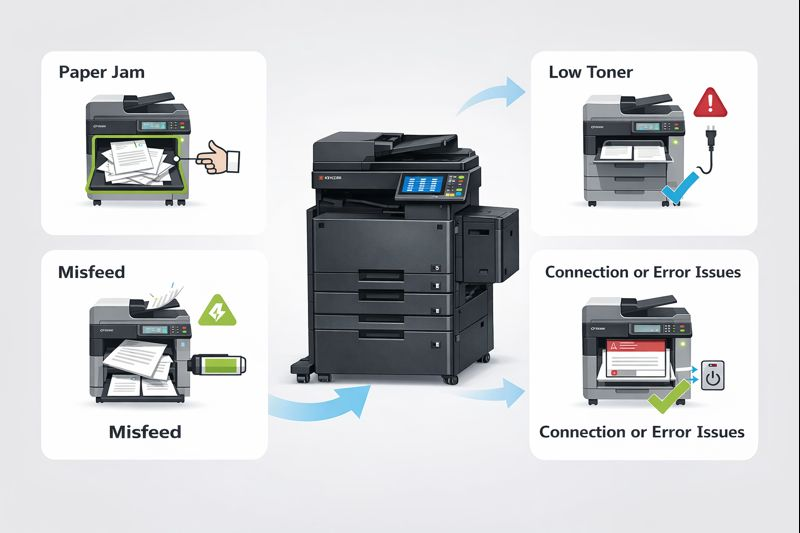
Troubleshooting common copier problems is essential for maintaining efficiency and minimizing downtime. Diagnosable issues include:
Error messages
Error code
Paper jams
Print quality issues
Network problems
Hardware malfunctions
Interpreting error messages and codes on Kyocera photocopiers is crucial for timely diagnosis and resolution of issues.
Timely diagnosis and resolution are key to effective troubleshooting tips.
Knowing the model and serial numbers of your Kyocera photocopier is important as they influence the repair process and settings. To reset a Kyocera photocopier, turn it off, unplug for 30 seconds, then plug it back in and turn it on. If the printer shows offline, check the network connection problem and update the printer driver. Network connection problems can prevent a print job from completing, and outdated drivers or improperly connected USB cables can cause the printer not to be recognized.
Addressing network and connectivity troubles with Kyocera photocopiers requires checking the IP settings and ensuring the device is properly connected to the router.
Toner smudging can indicate image quality issues related to the toner cartridge or imaging drum. Online support forums connect users with experiences and solutions, providing troubleshooting steps and best practices.
When dealing with paper jams, resolving the problem involves identifying the location of the jammed paper and carefully pulling it out in the direction of the paper path.
For hardware malfunctions, conduct a thorough visual inspection and run diagnostic tests available in the user interface.
Accessing official Kyocera repair manuals is vital for effective maintenance and troubleshooting of photocopiers.
Effective troubleshooting keeps your machine running smoothly, helps keep your copier trouble free, and ensures print jobs are completed efficiently.
Strategies for Reducing Costs
Reducing copier maintenance costs is achievable with a few smart strategies. Start by choosing energy-efficient copiers and turning them off when not in use to lower energy bills. Make use of comprehensive guide materials, such as user manuals and troubleshooting guides, to resolve common issues like error messages and connectivity problems without always needing professional help.
Establishing a regular maintenance schedule and following preventative maintenance procedures can also help you avoid costly repairs and minimize downtime. By staying proactive with copier maintenance and empowering your team with troubleshooting tips, your business can enjoy reliable performance and significant cost savings, ensuring your copier remains a valuable asset in your office technology lineup.
Summary
In summary, maintaining your Kyocera copier through regular cleaning, proper toner cartridge replacement, careful paper handling, and timely software updates can significantly extend its lifespan. Scheduling professional maintenance, utilizing copier features efficiently, and inspecting consumables timely are also crucial. By following these copier maintenance tips, you can ensure optimal performance, avoid costly repairs, and keep your office operations running smoothly.
Frequently Asked Questions
What should be done to increase the life of a photocopying machine?
To increase the life of your photocopying machine, keep the copier glass clean and ensure adequate airflow around the device. Additionally, leaving the power save mode on and being mindful of humidity levels will help maintain its performance.
Why is regular cleaning important for copier maintenance?
Regular cleaning is crucial for copier maintenance as it prevents dust and debris buildup, ensuring optimal print quality and reducing the risk of operational disruptions. Neglecting this can result in costly repairs and decreased efficiency.
How often should I replace the toner cartridge?
You should replace the toner cartridge when your machine indicates it's low, and it's best to use genuine Kyocera toner cartridges to ensure optimal performance.
What type of paper should I use to avoid jams?
To avoid jams, use high-quality paper that minimizes dust and enhances smooth feeding. This choice significantly reduces the risk of paper jams in your printer.
How can I update my copier’s software?
You can easily update your copier’s software by checking the manufacturer's website for the latest updates or by enabling automatic updates on your device. This will help ensure your copier operates efficiently with the latest features and security improvements.



Comments